
Edit your entire video with AI
Turn raw footage into finished videos in minutes. Use preset styles, chat to edit or apply fast quality fixes. No editing experience required.
Use AI Edit to transform an entire video
Pick your style
AI Edit offers a library of styles that automatically apply B-roll, transitions, music, and other elements to shape your video. For example, "Paper II" lends a handcrafted look, while "Vinyl II" applies retro animations and effects.
Finish and export
With AI Edit, you’ll get a fully edited video that’s ready to post. If you want to change any details, you can do that right in the Captions app or in the web editor.

Try it now
By uploading a video to be edited using AI, you are agreeing to our Terms and have read our Privacy Policy.
Use prompts for custom changes
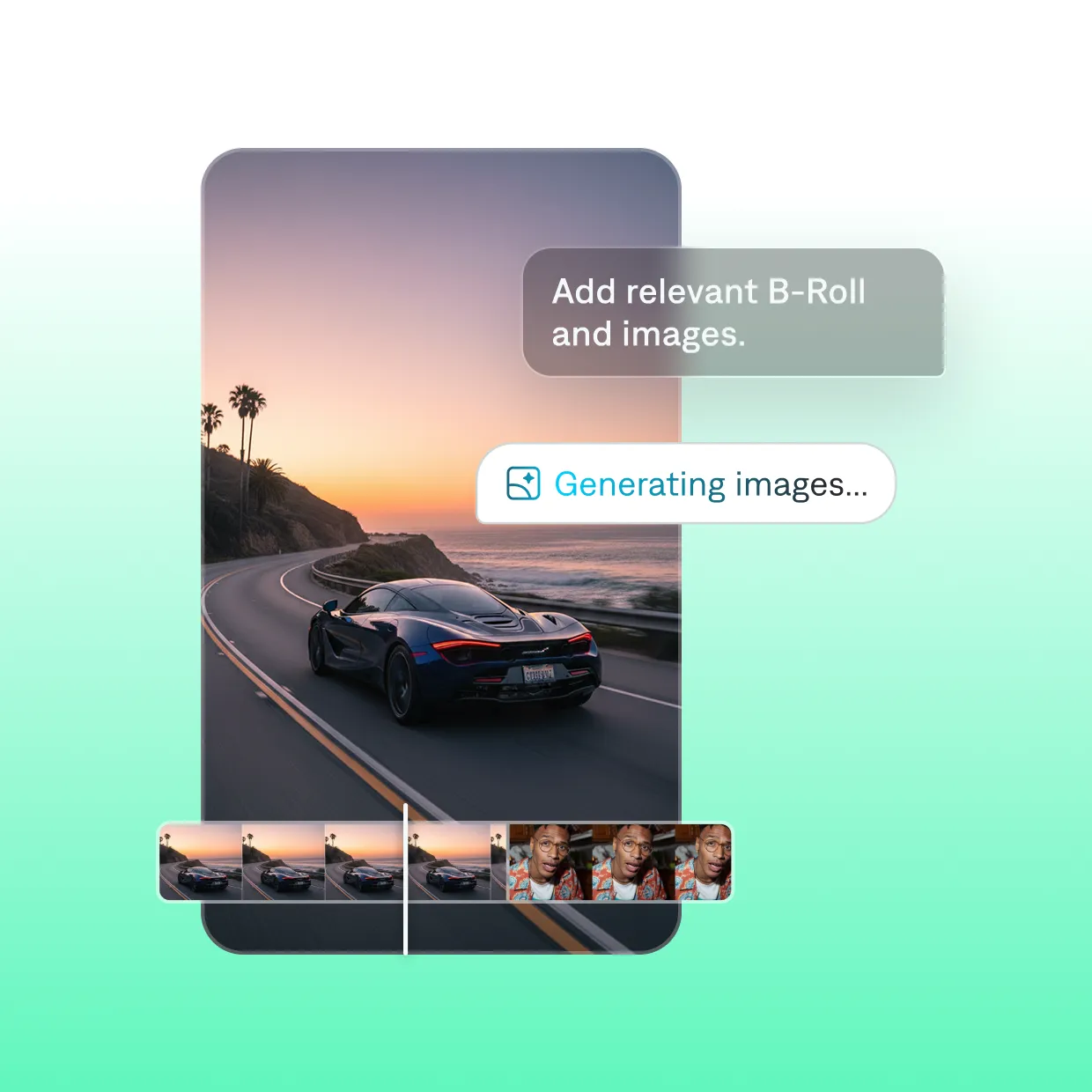
Type editing ideas
Captions' AI video editor responds to natural language, so it's easy for anyone to use. Prompt changes like B-roll, zooms, or even sound effects.
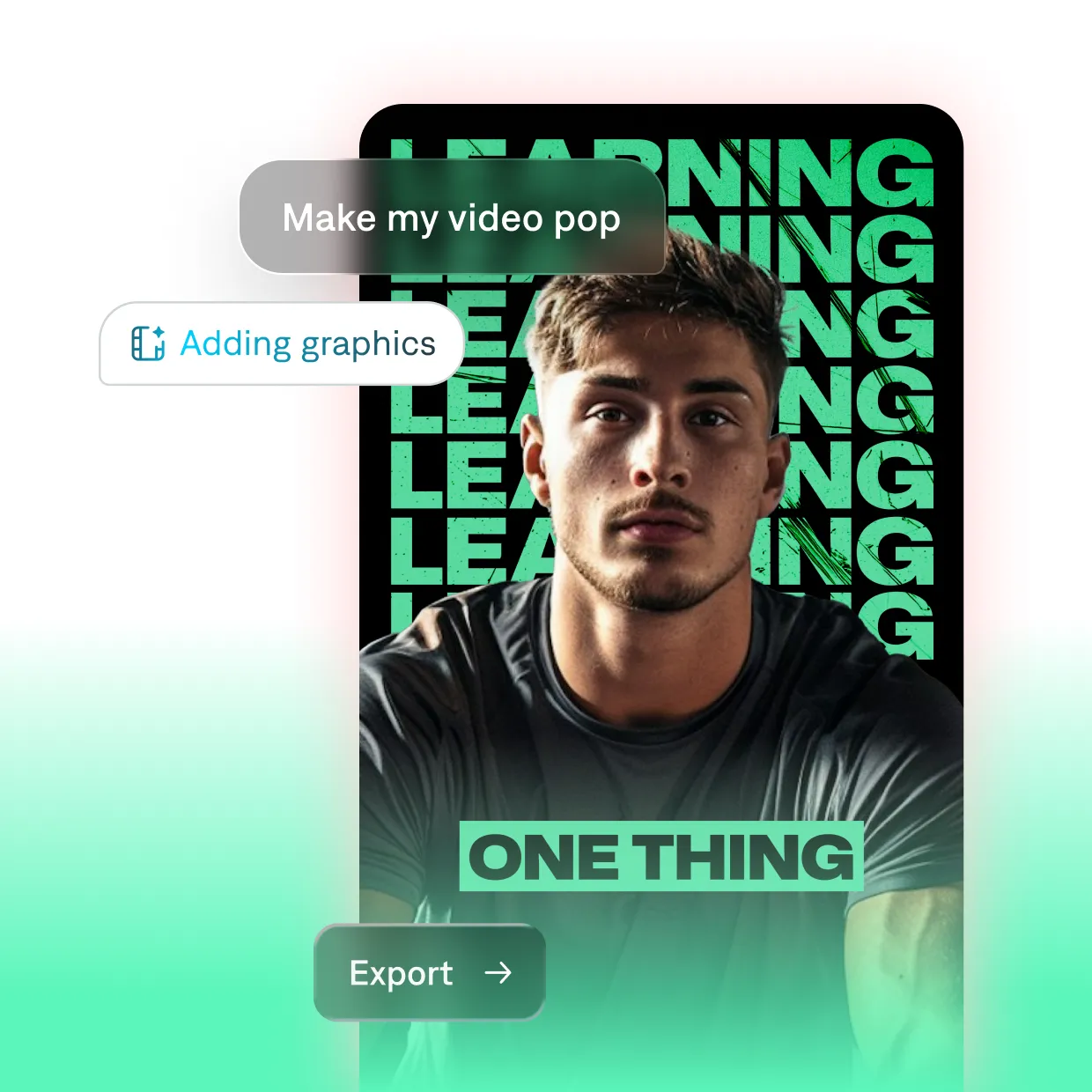
Get inspiration
The text-to-video editor can also recommend changes based on your specific footage and goals. AI analyzes your video and suggests updates.
Fix common recording issues with AI

Trim
Cut filler words and pauses so your video stays snappy.

Denoise
Reduce background noise and distractions for clearer audio.

Adjust eye contact
Fix a speaker’s eye contact for more consistent quality.

Remove backgrounds
Cut out the current background or replace it with something else.

Enhance footage
Add enhancements like music, B-roll, or sound effects.

Add zooms
Insert dynamic zooms to emphasize specific moments.
Start making better videos

Frequently asked questions
How do I edit videos with AI?
AI video platforms can automatically edit videos, add captions, and build other common video effects. Depending on your skills and priorities, you can use AI for small changes like subtitles or removing background noise. If you want more robust edits, products like Captions can edit your entire video with AI. All you need is footage, and AI automatically reads your video content and applies stylized changes.
Do I need editing experience to use Captions?
No, not at all. Captions is built and designed to be intuitive. The app handles all the complex editing tasks for you. For example, it will auto cut out silences, add captions, add zooms, clean up your audio, and more with the tap of a button.
Does Captions offer video templates?
What Captions offers is actually more powerful than a template, because it customizes every edit to your specific footage. Our AI Edit feature intelligently analyzes footage and applies the right transitions, zooms, and other details that will make your specific video perform. It's not a one-size-fits-all approach; it's uniquely tailored for you.
To get started, explore our style gallery and pick the style you want to try next. When you apply it to your footage, you'll see how Captions transforms your video with the right aesthetic, down to the details.
Can I still make manual edits?
Yes. While Captions offers many AI-powered features, you can also use manual editing if you prefer to. You’ll just edit in a more traditional way, like manual timeline edits or choosing where to add your own transitions.
Does Captions add a watermark to my videos?
No. Captions does not add any watermarks to your videos. Your finished videos are fully yours to share.
Does Captions export for social platforms?
What’s the best online video editor?
The best online video editor combines ease of use, fast processing, and a wide range of
customizable styles. Captions takes it a step further by automating tedious editing tasks.
Simply upload raw footage, select your desired editing style, and let AI do the
rest.
Automatic transitions, B-roll, and music not only save time but also
deliver professional-quality results in minutes. Plus, you can create images for video
content and seamlessly integrate them into your project.
What is the easiest, fastest AI video editor for beginners?
The easiest AI video editors remove timelines and complex tools. Captions is designed so you can start from ideas instead of edits: describe the video you want, upload simple footage, pick a style, and let AI handle cuts, B-roll, captions, zooms, and audio cleanup. Go from idea to shareable video fast, even without prior editing experience.