
Talking head videos, made simple.
Tools that work for any workflow
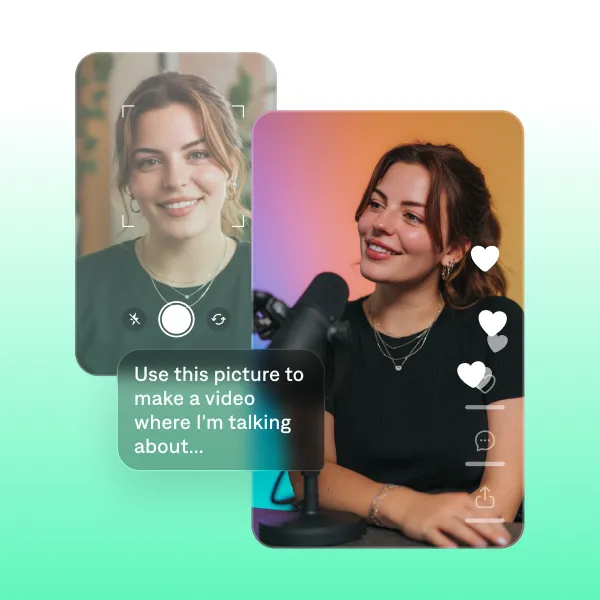
Edit existing footage
Move faster and publish more often. You can edit an entire talking head video in minutes.
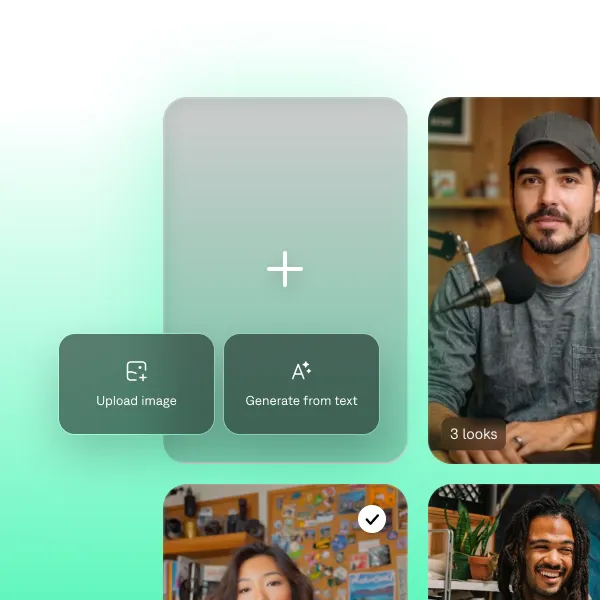
Create new footage
You can record directly in the Captions app. If you want to skip recording altogether, use one of our AI actors or your own digital twin.
Features you'll love
Quick quality fixes
Never worry about recording quality again. Captions can quickly fix common issues like eye contact inconsistencies, loud background noise and awkward pauses.
Automatic captions and subtitles
Accurate, animated captions keep viewers watching longer. You can also translate videos into new languages within Captions, with generated subtitles or lip dubbing.
Stylized editing
Captions turns raw talking head footage into a fully-edited video. Just choose a style, and your footage transforms with transitions, B-roll and more.
Get started now
By uploading a video to be edited using AI, you are agreeing to our Terms and have read our Privacy Policy.
Best practices for talking head videos
Deliver one clear idea per video
Videos that perform best make one sharp point. The impulse to be comprehensive is the enemy of the talking head format.
Light your face, not the background
Backlighting makes your video look too dark. A window in front of you (not behind) is the simplest, best lighting setup.
Prioritize clean audio
Viewers will tolerate average video quality but not poor audio. Take a minute to close windows, turn off HVAC, etc.
How to edit talking head videos in Captions
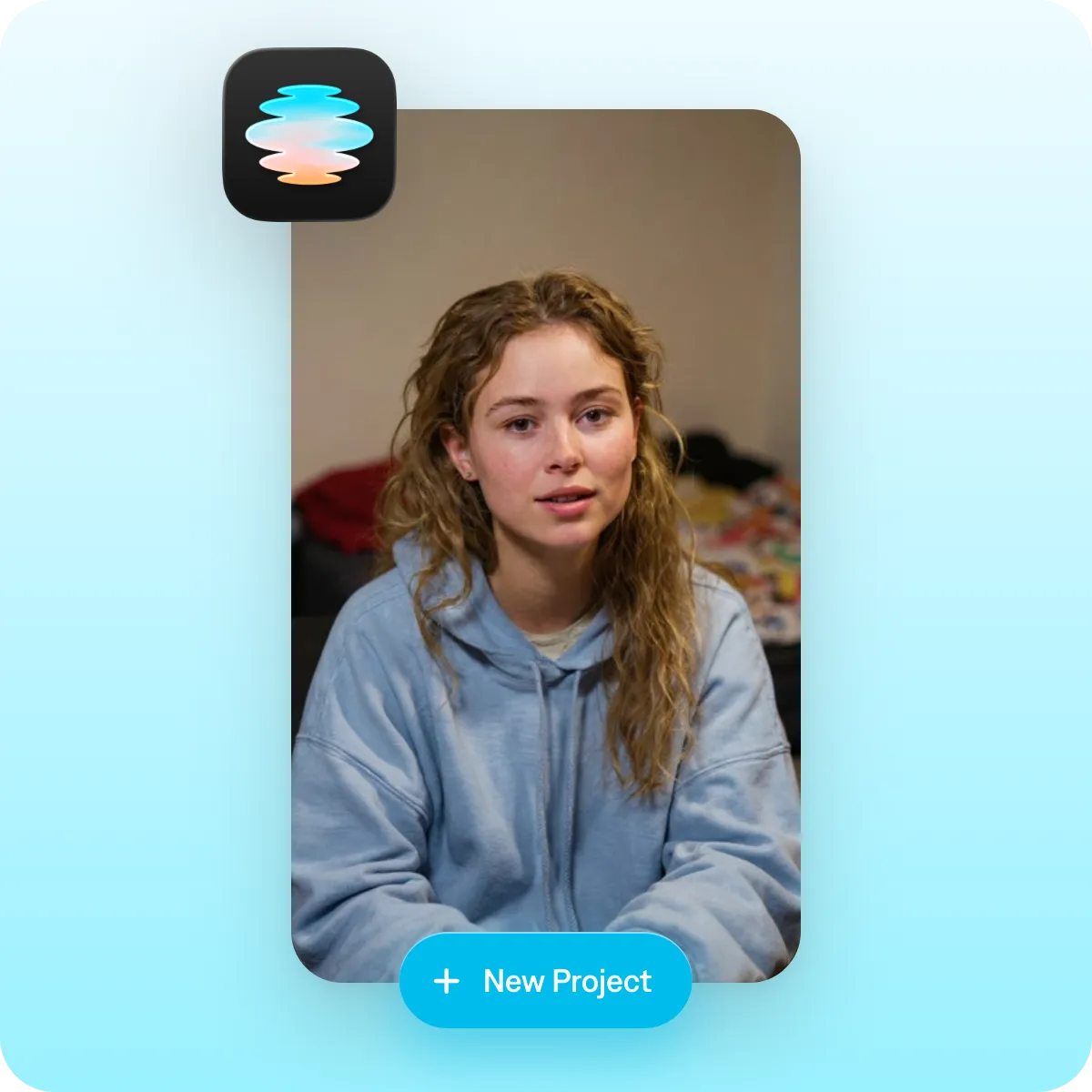
Step 1
Tap "New Project" to begin a new video.
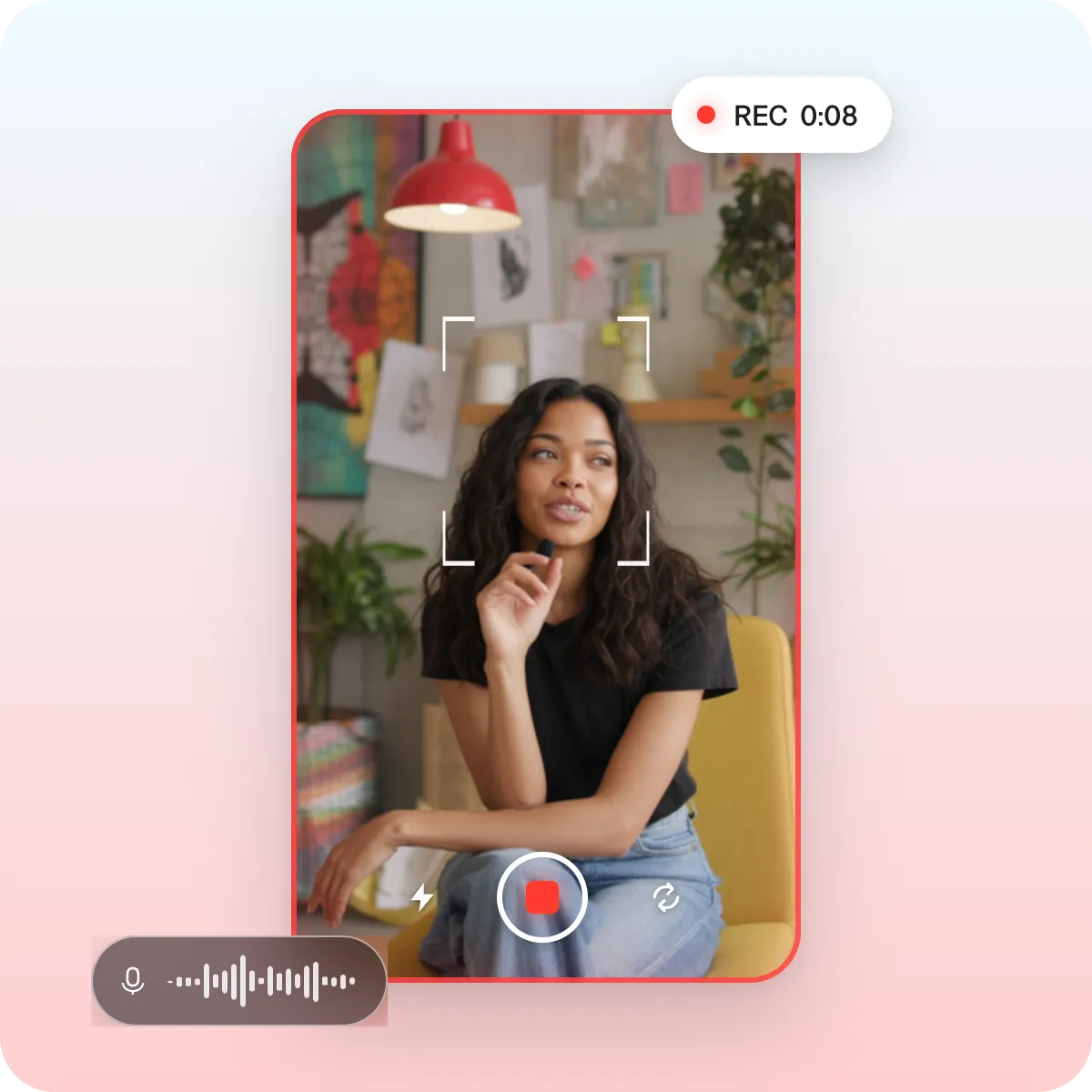
Step 2
Pick your source footage. You can upload existing footage or record something new directly in the Captions app. If you prefer to use a digital actor, you can generate footage with prompts or scripts.
Step 3
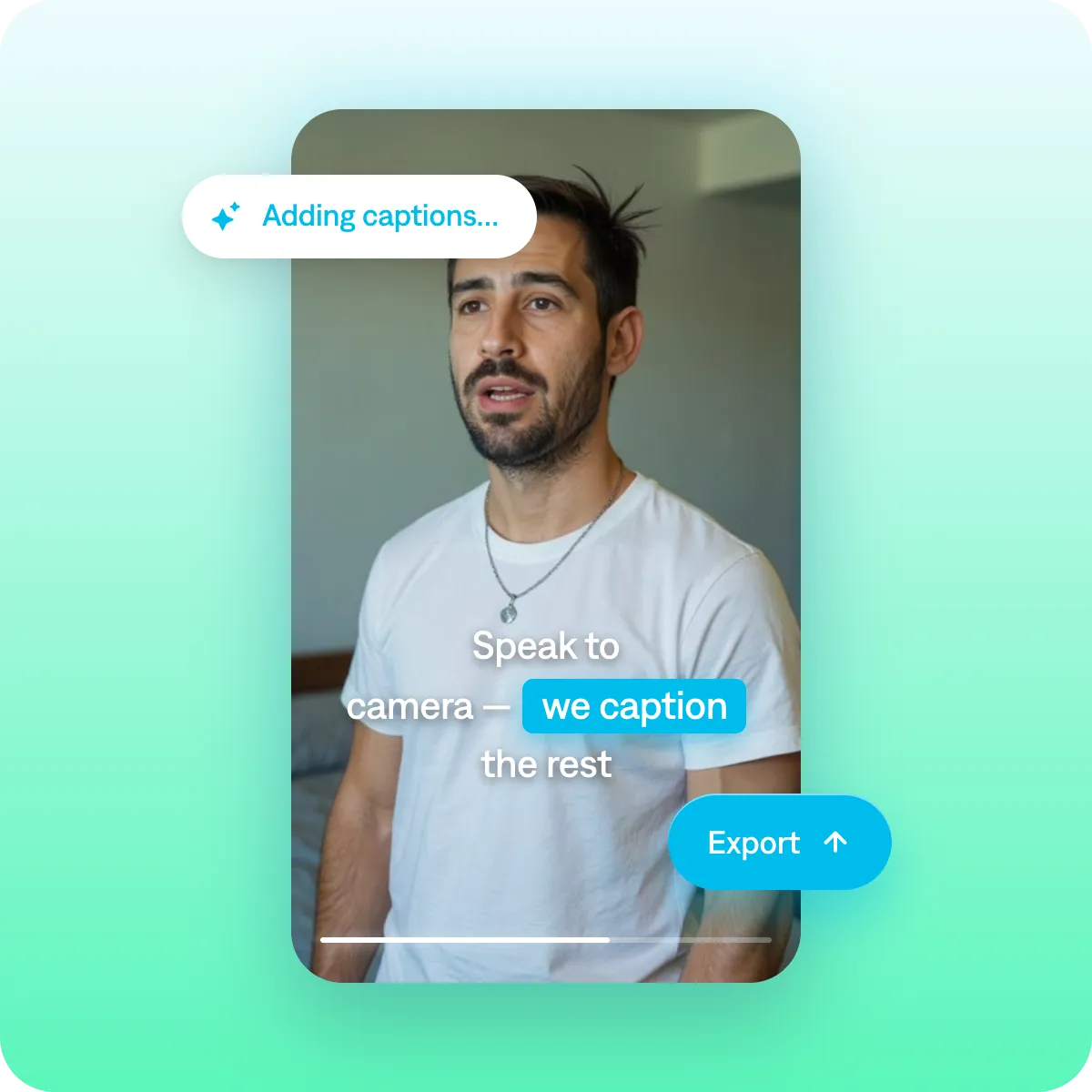
Choose your edit. You can apply an entire editing style at once or add individual details like captions. Your video will be ready to export in the right specs for top platforms.

Explore popular editing styles
Frequently asked questions
What is a talking head video?
A talking head video features someone speaking directly to the camera, usually from the waist up. Talking head videos are popular across verticals and use cases because they create strong connections with viewers. They feel organic and personal, even when they're posted to large audiences. Talking head videos can also work well for more professional contexts like business messaging or ads.
How do you make a talking head video?
You can make talking head videos by filming yourself with a phone or camera, or you can use AI tools that help you produce this style of content much faster. In Captions, you can create an AI Twin of yourself from a single photo and bring your script to life without setting up a shoot. If you want a presenter instead, you can also generate realistic AI avatars who deliver your message for you.
What equipment do I need for a talking head video?
You just need something to record. A phone is enough: Apps like Captions can help fix any recording quality issues in post-production. You don't need a professional setup or microphone to get started.
How do I make a talking head video with AI?
You can use AI to speed up multiple parts of the production process. If you already have footage, AI can help edit your final video. Just upload footage and AI will guide you through editing. If you'd rather skip filming altogether, use an avatar generator to create an AI actor or a digital twin from your own photo.
Can I customize AI avatars for talking videos?
Yes. Using a tool like Captions, you can fully customize AI avatars to look, sound, and act like your brand. Upload your own image or create a digital persona that matches your tone, outfit, or setting. You can also adjust voice, pacing, expressions, and background so every talking video feels authentic and on-brand.
How long does it take to edit a talking head video in Captions?
Most creators finish a publish-ready video in under 10 minutes using Captions' simple editing tools. If you use AI Edit, all you have to do is pick an editing style. Captions handles the rest and your video will be ready to export.
Can I make talking head videos in multiple languages at once?
Absolutely. With AI-powered talking heads, you can generate videos in multiple languages instantly without needing to re-record or translate manually. Just enter your script, choose your preferred language, and generate. You can even add lip dubbing so mouth movements match the new language.